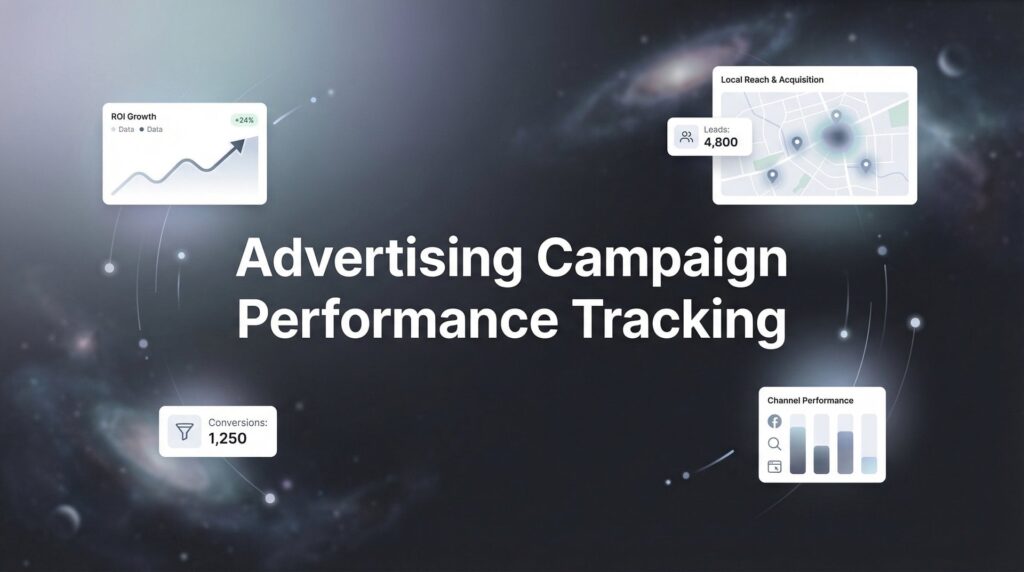
You’re spending money on ads, but do you actually know which campaigns are making you money? For most local business owners, advertising campaign performance tracking feels like trying to read a foreign language—lots of numbers, confusing dashboards, and no clear answers about what’s working.
Here’s the truth: without proper tracking, you’re essentially gambling with your marketing budget.
You might be pouring money into campaigns that generate clicks but zero customers, while starving the ads that could be filling your pipeline. The difference between profitable advertising and wasted spend isn’t the platform you choose or how clever your ad copy is—it’s whether you can actually measure what happens after someone clicks.
This guide cuts through the complexity and shows you exactly how to set up tracking that reveals your true return on investment. No fluff, no technical jargon you don’t need, just the exact steps to implement a tracking system that shows which ads bring in paying customers and which ones are just burning cash.
By the end, you’ll have a complete system that answers the only question that matters: “Is this advertising making me more money than I’m spending on it?”
Step 1: Define Your Conversion Goals Before Touching Any Tools
Before you install a single tracking code or open any analytics platform, you need to answer one fundamental question: what actions actually put money in your bank account?
This sounds obvious, but most businesses skip this step and end up tracking meaningless metrics. They celebrate 10,000 website visits while their phone stays silent and their inbox remains empty.
Start by listing every action a potential customer can take that leads to revenue. For a local service business, this might include phone calls, contact form submissions, and appointment bookings. For e-commerce, it’s purchases and sometimes email signups that convert later. For B2B companies, it could be demo requests, consultation bookings, or whitepaper downloads from qualified prospects.
Write these down. Be specific. “Contact us” isn’t specific enough—break it down into “called main phone number,” “submitted service request form,” “booked consultation through calendar widget.”
Now comes the critical part: assign a dollar value to each conversion type.
If your average customer is worth $2,000 and 30% of phone calls turn into customers, each phone call is worth $600. If form submissions convert at 20%, each form is worth $400. These numbers don’t need to be perfect, but they need to be realistic based on your actual business data.
Create a simple tracking document—a spreadsheet works perfectly—listing each conversion goal with its assigned value. This becomes your north star for every tracking decision that follows.
The common mistake here? Tracking vanity metrics instead of revenue-generating actions. Clicks, impressions, and website visits feel good to watch, but they don’t pay your bills. A campaign that generates 1,000 clicks and zero phone calls is worthless. A campaign that generates 50 clicks and 10 qualified leads is gold.
Your tracking system should make this distinction crystal clear from day one.
Step 2: Install and Configure Google Analytics 4 Properly
Google Analytics 4 represents the current standard for website analytics, replacing the older Universal Analytics. If you’re still using Universal Analytics or haven’t set up analytics at all, GA4 is where you start.
Setting up GA4 properly takes about 30 minutes and prevents months of headaches trying to fix broken data later. For a detailed walkthrough of the entire process, check out our complete Google Analytics setup guide that covers everything from installation to advanced configuration.
First, create your GA4 property through the Google Analytics interface. You’ll need a Google account—use your business email, not a personal account that might disappear if someone leaves the company. Navigate to Admin, create a new property, and select “GA4” as the property type.
Next, you need to install the tracking code on your website. GA4 provides a snippet of JavaScript that goes in the header section of every page. If you’re using WordPress, the easiest method is installing the “Site Kit by Google” plugin and connecting it to your GA4 property. For other platforms like Shopify or Squarespace, look for the “Google Analytics” integration in your platform’s settings.
The tracking code must appear on every page of your website. If it’s only on your homepage, you’re only tracking homepage visitors—everyone else is invisible to your analytics.
Once installed, configure enhanced measurement settings. GA4 can automatically track certain actions without additional setup: page scrolls, outbound link clicks, site searches, video engagement, and file downloads. Turn these on in your GA4 property settings under Data Streams. These automatic events give you valuable context about how people interact with your site.
Now create custom events for the specific conversion goals you defined in Step 1. If phone number clicks matter to your business, set up an event that fires when someone clicks your phone number. If form submissions drive revenue, configure an event that triggers when the “thank you” page loads.
GA4 uses an event-based model rather than the old session-based tracking. This means you’re measuring specific actions (events) rather than just counting visits. It’s more accurate for understanding what people actually do on your site.
Finally, verify everything works before moving forward. Open the real-time reports in GA4 and navigate your own website in a different browser window. You should see your activity appear within seconds. Click your phone number, submit a form, visit key pages—each action should register as an event.
If you don’t see your activity in real-time reports, your tracking code isn’t installed correctly. Fix this now before you waste weeks collecting broken data.
Step 3: Implement Conversion Tracking in Your Ad Platforms
Your ad platforms need to know when their traffic converts into customers. Without this connection, they’re flying blind—unable to optimize for the results you actually want.
Start with Google Ads conversion tracking. Inside your Google Ads account, navigate to Tools & Settings, then Conversions. Create a new conversion action for each goal from Step 1. Google provides a conversion tracking tag (a snippet of code) that you’ll install on your website, typically on the “thank you” page that appears after someone completes an action.
The smarter approach? Link your Google Ads account directly to your GA4 property. This connection allows Google Ads to import the custom events you already configured in GA4, eliminating duplicate tracking code and keeping everything centralized. Go to Tools & Settings, Linked Accounts, Google Analytics, and follow the linking process.
For Facebook and Instagram advertising, install the Meta Pixel. This is Meta’s version of a tracking code, and it works similarly to GA4. In your Facebook Ads Manager, navigate to Events Manager and create a new pixel. Meta provides installation instructions for various website platforms.
Once the base pixel is installed, configure custom conversions that match your specific goals. If a form submission matters to your business, set up a custom conversion that triggers when someone reaches your thank-you page URL or when a specific button is clicked.
Here’s where many businesses miss a huge opportunity: offline conversion tracking for phone calls.
If phone calls drive your revenue, you need call tracking for marketing campaigns using software like CallRail or CallTrackingMetrics. These services provide dynamic phone numbers that change based on where the visitor came from. Someone clicking a Google Ad sees one number, someone from Facebook sees another. When they call, the software attributes that call to the specific campaign that drove it.
This integration closes the loop between online advertising and offline conversions. Without it, you’re blind to one of the most valuable conversion types for local businesses.
Before launching any campaigns, test each conversion action. Submit a form, click a phone number, complete a purchase—whatever actions you’re tracking. Then verify these conversions appear in your ad platform’s reporting within 24 hours. If they don’t show up, your tracking isn’t working, and you’ll be optimizing campaigns based on incomplete data.
One conversion might work while another fails. Test them all individually.
Step 4: Build UTM Parameters Into Every Campaign Link
UTM parameters are the secret weapon that turns messy attribution into crystal-clear campaign performance data. They’re simple tags you add to the end of URLs that tell your analytics exactly where traffic came from.
Without UTMs, your analytics might show “100 visitors from Facebook” but can’t tell you which specific ad, campaign, or even which post drove those visitors. With UTMs, you see “50 visitors from Facebook Spring Sale Campaign, Ad Set A, Carousel Ad 2.” That specificity changes everything.
UTM parameters follow a standardized format with five components: source, medium, campaign, term, and content. Source identifies where traffic originates (facebook, google, email). Medium describes the marketing channel (cpc, social, email). Campaign names the specific marketing initiative (spring_sale, new_service_launch). Term captures paid search keywords. Content differentiates similar ads within the same campaign.
The key to UTM success is consistency. If you tag one Facebook ad as source=facebook and another as source=fb, your analytics treats them as separate sources. Your data fragments into useless pieces.
Create a UTM naming convention document before tagging your first link. Decide now: will you use underscores or hyphens? Lowercase or mixed case? How will you abbreviate platform names? Write it down and follow it religiously.
Use Google’s Campaign URL Builder to generate tagged links. This free tool ensures proper formatting and reduces typos. Enter your destination URL, fill in your UTM parameters, and it outputs the complete tagged URL ready to use in your ads.
Here’s what this looks like in practice: you’re running a Google Ads campaign promoting your spring service special. Your destination URL is clicksgeek.com/spring-offer. Your tagged URL becomes: clicksgeek.com/spring-offer?utm_source=google&utm_medium=cpc&utm_campaign=spring_service_special&utm_content=headline_a
Build a UTM tracking spreadsheet to maintain consistency across all campaigns. Create columns for campaign name, source, medium, content variation, and the full tagged URL. Every time you create a new ad, add it to this spreadsheet. This central reference prevents confusion and ensures your team uses consistent tagging.
Why does this matter so much? Proper attribution shows exactly which ad drove each conversion. You’ll know that your Facebook carousel ad outperformed your single-image ad by 40%. You’ll see that your Google search campaign delivers better leads than your display campaign. You’ll discover that email campaign A generated twice the revenue of email campaign B.
Without UTMs, these insights remain hidden in aggregated data that can’t guide your decisions.
Step 5: Set Up a Dashboard That Shows What Actually Matters
Raw data means nothing without clear visualization. You need a dashboard that answers your most important questions at a glance: which campaigns are profitable, which are bleeding money, and where should you invest more budget?
Google Looker Studio provides free dashboard creation that connects multiple data sources into one unified view. This is where your GA4 data, Google Ads performance, Facebook metrics, and call tracking information come together.
Create a new Looker Studio report and connect your data sources. Add GA4 as a data source first, then connect your Google Ads account, Meta Ads account, and any other platforms you’re using. Looker Studio pulls data directly from these platforms, updating automatically without manual exports.
Now focus on the metrics that actually matter: cost per acquisition, return on ad spend, and conversion rate by campaign.
Cost per acquisition shows how much you’re paying to acquire each customer. If your CPA is $150 and your average customer value is $2,000, you’re in good shape. If your CPA is $800 and your customer value is $500, you’re losing money on every sale.
Return on ad spend calculates revenue generated divided by ad spend. A ROAS of 3.0 means you’re making $3 for every $1 spent. Anything above your breakeven ROAS is profit. Calculate your breakeven by dividing 1 by your profit margin—if you have a 40% margin, your breakeven ROAS is 2.5. If you’re struggling with these numbers, our guide on fixing low ROI from digital advertising breaks down exactly how to diagnose and improve your returns.
Conversion rate by campaign reveals which campaigns turn clicks into customers most efficiently. Two campaigns might have the same cost per click, but if Campaign A converts at 8% and Campaign B converts at 2%, you know where to shift budget.
Design your dashboard with these metrics front and center. Add comparison periods to spot trends—is this week better or worse than last week? Is this month outperforming the same month last year? Seasonal patterns matter for local businesses, and your dashboard should make them obvious.
Set up automated weekly email reports so you never miss performance changes. Looker Studio can email your dashboard every Monday morning, keeping you informed without logging in manually. If a campaign suddenly stops converting, you’ll know within days instead of weeks.
Include breakdowns by traffic source, campaign, device type, and geographic location. You might discover that mobile traffic converts poorly for your business, or that certain zip codes deliver far better customers than others. These insights guide optimization decisions that improve results over time.
The goal isn’t to create the prettiest dashboard—it’s to build a tool that makes smart decisions obvious.
Step 6: Validate Your Data and Fix Common Tracking Errors
Your tracking system is only valuable if the data is accurate. Broken tracking leads to bad decisions, wasted budget, and missed opportunities. Validation isn’t optional—it’s the difference between trusting your data and flying blind.
Run test conversions through each tracking pathway to confirm accuracy. Submit a form on your website, then check if it appears in GA4, Google Ads, and your dashboard within 24 hours. Make a test phone call through your call tracking number and verify it attributes to the correct source. Complete a purchase if you’re tracking e-commerce transactions.
Each conversion should appear in every connected system. If it shows up in GA4 but not in Google Ads, your conversion import isn’t working correctly. If it appears in Google Ads but not your dashboard, your data connection needs fixing. Many businesses discover they’re not tracking marketing conversions properly only after months of making decisions based on incomplete data.
Check for duplicate conversion counting that artificially inflates your numbers. This happens when you have multiple tracking methods measuring the same action—both a GA4 event and a Google Ads conversion tag firing on the same thank-you page. Your reports show two conversions when only one person converted, making your campaigns look more successful than they are.
Review your conversion settings in each platform. Make sure you’re not counting the same action twice through different tracking methods. If you’re importing GA4 conversions into Google Ads, you don’t need a separate Google Ads conversion tag for the same action.
Verify cross-domain tracking if you use landing pages on different domains. Many businesses send ad traffic to a landing page on landingpage.com but their main website is mainsite.com. Without proper cross-domain tracking configuration, analytics treats these as separate visits from different users, breaking your attribution data.
GA4 requires specific cross-domain setup in your configuration settings. Add all domains where you want to track user journeys as a single session. Test this by clicking through from one domain to another—your session should continue unbroken in real-time reports.
Set up alerts for when conversion tracking stops working. Tracking breaks more often than you’d think—website updates, platform changes, team members accidentally deleting code. Configure alerts in GA4 that notify you when conversion volume drops significantly compared to the previous week.
If you normally receive 50 form submissions per week and suddenly you’re seeing 5, either your marketing collapsed overnight (unlikely) or your tracking broke (very likely). Alerts catch these issues before you waste weeks of budget on campaigns you think aren’t converting when they actually are.
Review your tracking setup quarterly at minimum. Platforms update, best practices evolve, and your business goals change. What you tracked six months ago might not align with what matters to your business today.
Putting It All Together
You now have a complete advertising campaign performance tracking system that shows exactly where your money goes and what it brings back. No more guessing which campaigns work. No more celebrating vanity metrics while your revenue stays flat. Just clear data that guides profitable decisions.
Quick implementation checklist: define your conversion goals with dollar values, install GA4 with custom events, set up platform-specific conversion tracking in Google Ads and Meta, tag every campaign link with consistent UTM parameters, build your reporting dashboard in Looker Studio, and validate everything works with test conversions.
The businesses that track properly don’t just spend less—they spend smarter. They double down on campaigns delivering $5 for every $1 spent while cutting campaigns that barely break even. They know exactly which ad creative, which audience, and which offer drives the most valuable customers. That knowledge compounds into better results month after month. Understanding what performance marketing actually means helps you shift from hoping your ads work to knowing exactly what’s driving revenue.
Start with the basics and expand as you get comfortable. You don’t need perfect tracking on day one—you need working tracking that improves your decisions. Install GA4 this week. Set up conversion tracking next week. Build your dashboard the week after. Each step makes your advertising more effective than it was before.
Once your tracking is solid, the next step is marketing campaign optimization—using your data to systematically improve results. You’ll also want to explore the best paid advertising platforms for your specific business type, since different platforms work better for different industries.
If setting up tracking feels overwhelming or you’d rather focus on running your business instead of configuring analytics platforms, you’re not alone. Most local business owners want the results without becoming tracking experts themselves.
Clicks Geek specializes in building performance tracking systems that show local businesses their true ROI. We handle the technical setup, connect all your platforms, and deliver dashboards that answer your most important questions. Tired of spending money on marketing that doesn’t produce real revenue? We build lead systems that turn traffic into qualified leads and measurable sales growth. If you want to see what this would look like for your business, we’ll walk you through how it works and break down what’s realistic in your market.
Stop guessing and start knowing. Your competitors are already tracking their performance—the question is whether you’ll catch up or fall further behind.
Want More Leads for Your Business?
Most agencies chase clicks, impressions, and “traffic.” Clicks Geek builds lead systems. We uncover where prospects are dropping off, where your budget is being wasted, and which channels will actually produce ROI for your business, then we build and manage the strategy for you.