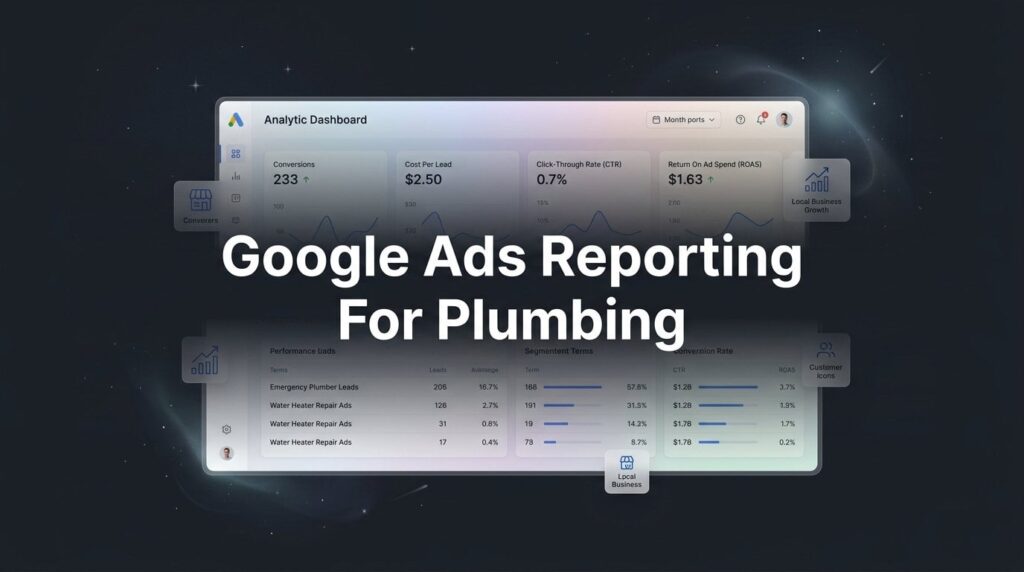
Most plumbing businesses running Google Ads have no idea if their campaigns are actually profitable. They see clicks, impressions, and spend — but those numbers don’t tell you whether a $150 emergency drain call came from your ads or a $4,000 water heater replacement did. Without the right reporting setup, you’re making real financial decisions based on vanity metrics that don’t connect to booked jobs.
Here’s the uncomfortable truth: a low cost-per-click means nothing if those clicks never pick up the phone. A $15 CPC that produces a $200 cost-per-booked-job is far more valuable than a $5 CPC that generates zero revenue. The metric that matters is cost-per-conversion, and getting there requires building a reporting foundation that actually reflects how plumbing customers behave.
This guide walks you through exactly how to set up and read Google Ads reporting for your plumbing business. From defining the right conversion actions to reading geographic data by ZIP code, each step gives you a clearer picture of where every dollar went and what it produced. Whether you’re managing your own campaigns or overseeing an agency, this framework gives you the clarity to make confident, revenue-based decisions.
By the end, you’ll know which campaigns are generating booked jobs, which keywords are draining budget on people who have no intention of calling you, and what weekly reporting habits separate plumbing businesses that grow from ones that just spend.
Step 1: Define the Conversions That Actually Mean Revenue
Before you look at a single report, you need to get clear on what counts as a win. For most plumbing businesses, there are three core conversion actions worth tracking: phone calls from ads, contact form submissions, and booking page completions. Everything else is noise.
The problem is that Google Ads, by default, will happily count every interaction as a conversion if you let it. A three-second call from someone who dialed the wrong number? Counted. A form submission from a bot? Counted. This is why tracking “all conversions” without filtering creates misleading data that can make a failing campaign look healthy.
Start with phone calls. Navigate to Tools and Settings > Conversions > New Conversion Action > Phone Calls > Calls from ads using a Google forwarding number. When you set this up, pay close attention to the minimum call duration setting. For plumbing businesses, the industry standard among local service PPC practitioners is 60 to 90 seconds. Anything shorter is almost certainly a misdial, a wrong number, or someone who hung up before you answered. Set your threshold accordingly, because every short call counted as a conversion is a lie your data is telling you.
Next, understand the difference between primary and secondary conversions. In Google Ads, primary conversions influence your Smart Bidding strategies and are counted in your main “Conversions” column. Secondary conversions appear only in the “All Conv.” column and don’t affect bidding. For plumbing businesses, only booked-intent actions should be primary: calls over your duration threshold and completed booking or contact form submissions.
For form submissions, use a thank-you page URL as your trigger rather than a button click. When someone completes your form and lands on yoursite.com/thank-you, that’s a confirmed submission. Button click tracking can fire even when a form fails to submit, which inflates your numbers. Go to Tools and Settings > Conversions > New Conversion Action > Website > URL contains and enter your thank-you page path.
One more pitfall to avoid: spam form fills. If your website doesn’t have reCAPTCHA or basic bot protection, form submission conversions can become unreliable fast. Clean data starts with a clean form.
Step 2: Connect Google Analytics 4 Without Creating Duplicate Counts
Linking Google Ads to Google Analytics 4 gives you something native Google Ads reporting can’t: session-level context. You can see what happened after someone clicked your ad. Did they visit three pages and then call? Did they bounce immediately? That behavioral data helps you understand whether your landing page is doing its job.
To link the accounts, go into your GA4 Admin panel > Google Ads Links > Link. Select your Google Ads account and confirm. The process takes a few minutes and typically begins populating data within 48 hours. Once linked, you should see campaign-level traffic data appearing under Acquisition > Traffic Acquisition in GA4, broken down by campaign name.
For this to work correctly, auto-tagging must be enabled in your Google Ads account. This is a technical requirement, not optional. Auto-tagging appends a unique parameter (gclid) to your ad destination URLs, which is what allows GA4 to attribute sessions to specific campaigns and keywords. Confirm it’s on by going to Google Ads > Admin > Account Settings > Auto-tagging. If it’s off, turn it on before you do anything else.
Now, here’s the critical pitfall that trips up a lot of plumbing businesses and agencies alike: duplicate conversion counting. If you set up a phone call conversion action directly in Google Ads AND then import the same call event from GA4, your conversion numbers will inflate. You’ll think you’re getting twice the leads you actually are, which makes your cost-per-conversion look artificially low.
The clean approach: use Google Ads native conversion tracking for phone calls (since GA4 can’t track call duration thresholds natively), and use GA4 to track on-site actions like thank-you page visits. Import your GA4 booking confirmation event into Google Ads only if you’re not already tracking that same page with a Google Ads conversion tag. When in doubt, check the “Source” column in your Google Ads Conversions table. It will show you whether each conversion action originates from Google Ads or is imported from GA4.
Set up your booking confirmation or thank-you page as a GA4 conversion event by going to GA4 Admin > Events, finding the page_view event for your thank-you URL, and marking it as a conversion. Then import it into Google Ads via Tools and Settings > Conversions > Import > Google Analytics 4 properties.
Step 3: Build Your Core Plumbing Reporting Columns in Google Ads
Most plumbing business owners open Google Ads, glance at spend and clicks, and close the tab. That’s not reporting. That’s checking a number without understanding what it means. The default column view in Google Ads is built for general advertisers, not for a plumbing company trying to figure out whether their emergency drain campaign is worth keeping.
Here’s how to build a column set that actually tells you something. Go to your Campaigns view > Columns > Modify Columns. Remove anything that doesn’t connect to your business outcomes and add the following:
Impressions: How many times your ads were shown. High impressions with low clicks means your ad copy or targeting needs work.
Clicks: The raw traffic number. Useful in context, not in isolation.
CTR (Click-Through Rate): The ratio of clicks to impressions. For local plumbing searches, a strong CTR signals that your ad headline is resonating with what people are searching for.
Avg. CPC: Your average cost per click. Watch this in relation to your conversion rate, not on its own.
Cost: Total spend. Always visible, rarely enough context without the columns below it.
Conversions: Your primary conversion count. This is booked-intent actions only, based on the setup you completed in Step 1.
Cost / Conv.: The metric that matters most. This is your cost per lead. If this number is moving in the wrong direction, something needs to change.
Conv. Rate: What percentage of clicks turn into conversions. Low conversion rate with decent traffic usually points to a landing page problem, not an ads problem.
Search Impression Share: What percentage of eligible impressions your ads actually received. For a plumbing business serving a specific city or set of ZIP codes, this is a direct competitive signal. If your impression share is low, competitors are showing up when you’re not.
Search Lost IS (Budget): The share of impressions you missed because your daily budget ran out. If this number is significant, you’re going dark during peak hours and losing calls to competitors who stayed live.
Search Lost IS (Rank): Impressions lost because your ad rank was too low. This points to bid or Quality Score issues.
Add the All Conv. column alongside Conversions. A large gap between these two numbers means secondary actions (map directions, website visits) are being counted somewhere and inflating your perceived performance.
Once you’ve built this column set, save it as a custom preset. Name it something like “Plumbing Core View” and apply it across your campaigns, ad groups, and keywords tabs. Consistency in how you view data is what makes week-over-week comparison meaningful.
Step 4: Establish a Weekly Reporting Routine That Drives Decisions
Data without a review rhythm is just noise. The right cadence for plumbing Google Ads is weekly snapshots for optimization decisions and monthly rollups for strategic ROI review. Weekly reviews keep you close enough to the data to catch problems before they compound. Monthly reviews give you enough data volume to spot real trends.
To build your weekly snapshot, go to the Reports tab > Predefined Reports > Campaign Performance. Set the date range to “Last 7 days” and use the comparison feature to stack it against the previous 7 days. The four numbers every plumbing owner should review in this snapshot are: total spend, total conversions, cost per conversion, and impression share.
Here’s a simple diagnostic rule: if cost per conversion rises more than 20% week-over-week without a corresponding increase in conversion volume, something broke. Either a high-converting keyword lost position, a bad search term started burning budget, or a competitor increased their bids. That’s your signal to dig deeper into the search terms report and keyword performance.
To remove yourself from having to remember this every Monday, use the schedule feature inside Google Ads Reports. After building your report, click the three-dot menu and select Schedule Email. Set it to weekly, Monday morning, delivered to whoever reviews the account. This creates accountability without requiring anyone to log in and pull data manually.
One often-overlooked feature: segment your performance by day of week. Go to Campaigns > Segment > Day of Week. For most plumbing businesses, emergency call volume spikes on weekends and Monday mornings when people have dealt with a problem all weekend and finally call for help. If your budget is set flat across all seven days, you may be underfunding your highest-demand windows. Use this data to inform budget scheduling or bid adjustments by time of day.
The goal of every weekly review isn’t to admire the numbers. It’s to leave with at least one optimization decision: a negative keyword to add, a bid to adjust, a budget to reallocate. Reporting that doesn’t produce action is just an expensive habit.
Step 5: Audit Keywords and Search Terms to Cut Waste and Find Winners
The search terms report is the most important report in your entire Google Ads account. It shows you the actual queries that triggered your ads, which is often very different from the keywords you think you’re targeting. For plumbing campaigns, this report is where you’ll find both your biggest waste and your best opportunities.
Navigate to Keywords > Search Terms. What you’re looking for first are non-buyer queries. In plumbing campaigns, common budget drains include searches like “how to fix a leaking pipe,” “DIY drain unclog,” “plumbing school near me,” “plumber salary,” and “plumbing apprenticeship programs.” These searches come from people who have no intention of hiring you. If your campaign uses broad or phrase match keywords, these queries will trigger your ads regularly.
Add these to a negative keyword list at the account level so they’re excluded across all campaigns. Go to Keywords > Negative Keywords > Add to Account-Level List. Building an account-level negative list means you only have to add a term once and it applies everywhere, rather than campaign by campaign.
Now look for winners. Sort the search terms report by conversions, descending. Any term with three or more conversions and a cost-per-conversion below your campaign average is a signal. Consider adding that exact search query as an exact match keyword in your campaign so you can bid on it more precisely and track its performance separately.
Pay attention to match type performance. Broad match keywords in plumbing campaigns have a tendency to pull in loosely related searches that inflate spend without producing calls. Phrase match and exact match give you more control. This doesn’t mean broad match is always wrong, but it requires active management and a healthy negative keyword list to stay clean.
After 30 days of consistent negative keyword management, you should see your average cost per conversion decrease without a proportional drop in conversion volume. That’s the clearest sign your search term hygiene is working. You’re spending the same money, but on searches that actually convert.
Step 6: Use Geographic and Device Data to Sharpen Your Targeting
Your plumbing business doesn’t serve everywhere, and your ads shouldn’t spend everywhere. Geographic and device segmentation reports tell you exactly which locations and which devices are producing booked jobs versus burning budget.
To access geographic performance, go to Campaigns > select a campaign > Locations > Geographic Report (sometimes found under Segment > Geographic). This shows you performance broken down by city, ZIP code, or region depending on how your targeting is set up. Sort by cost and look for locations with significant spend and zero or near-zero conversions. Those are your problem areas.
For a plumbing business with a defined service area, a ZIP code 40 miles outside your coverage zone showing up with ad spend is a direct hit to your margins. You can exclude those locations entirely or apply a negative bid adjustment to reduce how aggressively you show up there. Go to Campaign Settings > Locations > Add Locations > Exclude to remove them outright.
Conversely, if a specific ZIP code or neighborhood is generating conversions at a cost-per-lead well below your average, apply a positive bid adjustment to increase your visibility there. These are your high-value pockets.
For device performance, go to Campaigns > Segment > Device. Compare mobile, desktop, and tablet conversion rates side by side. Emergency plumbing searches skew heavily toward mobile because people are in the middle of an active problem and searching from their phone. If your mobile conversion rate is significantly lower than desktop, the issue usually isn’t the ads. It’s the experience after the click: a landing page that’s slow to load, hard to read on a small screen, or doesn’t have a prominent click-to-call button.
If mobile is underperforming, apply a negative bid adjustment to reduce mobile spend while you fix the landing page experience. Once the friction is removed, bring mobile bids back up. Tying geographic data back to your operational capacity is also worth doing: if you’re seeing conversions from a ZIP you don’t serve efficiently, either build the capacity to serve it well or exclude it to protect your margins and customer experience.
Putting It All Together: Your Plumbing Ads Reporting Checklist
You now have a complete six-step framework for Google Ads reporting that’s built around how plumbing businesses actually operate. Here’s how to keep it working week over week.
Weekly checklist: Review total spend vs. budget. Check cost per conversion against your target. Scan new search terms for negative keyword opportunities. Confirm conversions are firing correctly (a sudden drop usually means a tracking tag broke). Note any significant impression share changes.
Monthly checklist: Review impression share trends to assess competitive pressure. Evaluate keyword-level performance and pause anything with significant spend and zero conversions. Audit geographic exclusions and add any new problem locations. Compare month-over-month cost per lead and identify which campaigns are improving versus stagnating.
The most important principle behind all of this: reporting is only valuable if it drives action. Every review session should end with at least one concrete decision. Add a negative keyword. Adjust a bid. Shift budget from a weak campaign to a strong one. Exclude a ZIP code. The data exists to help you make those calls with confidence rather than guessing.
If managing all of this feels like more than you have bandwidth for, or if your current campaigns aren’t producing the cost-per-lead numbers your business needs, Clicks Geek specializes in Google Ads for local service businesses exactly like yours. We know what good plumbing PPC reporting looks like because we’ve built it for businesses across the country.
Proper Google Ads reporting transforms your ad spend from a guessing game into a measurable growth system. The goal isn’t perfect data. It’s directionally accurate data that helps you make better decisions this week than you made last week, and better decisions next month than you made this one.
Stop optimizing for clicks and start optimizing for booked jobs. That shift in focus, supported by the reporting framework above, is what separates plumbing businesses that scale profitably from ones that keep spending without knowing why.
If you want to see what this would look like for your specific market, we’ll walk you through how it works and break down what’s realistic for your service area, your competition, and your growth goals.