If you want to win at local search, learning how to add locations to Google My Business (now Google Business Profile) is essential. Setting up a unique, optimized listing for every storefront tells Google you're a serious local player. This is how you show up for those valuable "near me" searches.
This guide will walk you through adding single and multiple locations to your Google Business Profile, step-by-step.
Why Each Business Location Needs Its Own Profile
Expanding to a second or third location is a huge milestone. But customers need to find you online. Creating individual Google Business Profiles for each spot is a non-negotiable part of your local SEO strategy.
Think of it like this: if you have a chain of coffee shops, each profile is a separate digital storefront. You're not just dropping pins on a map. You're giving each shop the power to rank in its specific neighborhood.

Unlocking Hyper-Local Visibility
When someone searches for "coffee shop near me," Google's algorithm serves the closest, most relevant result. A dedicated profile helps your downtown shop appear in downtown searches, while your suburban location captures customers in that neighborhood.
This hyper-local approach makes a real difference:
- Better Local Pack Rankings: The map with the top three businesses (the "local pack") favors profiles that are accurate and physically close to the searcher.
- Targeted Customer Engagement: Each profile can have unique reviews, photos, and Google Posts. This lets you connect with each community directly.
- A Smoother Customer Journey: A unique profile eliminates confusion. Customers get the right phone number, address, and directions to the exact location they want.
Of course, a great online presence needs solid internal operations. Focusing on things like reducing miscommunication between HQ and store locations is also critical for success.
How to Add a Single Location to Google My Business
Ready to grow from one spot to two (or more)? The process is straightforward, but you need to get it right from the start.
A common mistake is changing the address on your original profile. Don't do that. It messes up your existing local SEO and confuses Google.
Instead, you’ll create a brand-new profile for the new location. This tells Google, "Hey, this is another real-world place where customers can find me."
Starting the Process
You can get started right from your main Google Business Profile dashboard.
-
Log into your Google Business Profile manager.
-
You'll see a button to add a new business.
-
Click "Add single business." This starts the setup wizard, which will guide you through entering the key information for your new storefront.
Getting the Details Right
Accuracy is non-negotiable here. Getting this 100% right from the beginning will save you from major headaches later.
Here’s your pre-flight checklist:
- A Unique Business Name: Don't just clone the name of your first location. Give it a unique identifier. For example, instead of "City Coffee," make it "City Coffee – Southside."
- The Exact Physical Address: This must be a legitimate, verifiable address. P.O. boxes and virtual offices will get your profile suspended.
- A Distinct Local Phone Number: It's tempting to use your main business line, but a unique phone number for each location is a massive signal for local SEO.
In Short: Your Name, Address, and Phone number (NAP) for each location must be unique. This is the foundation of a solid online identity for your new spot.
After you've entered the business details, Google will need to verify your location. The most common method is a postcard sent to the address you listed, which usually arrives in 5-14 business days. Once it arrives, log back in, enter the code, and your new location will be live.
How to Add Multiple Locations with Bulk Upload
If you're managing ten or more locations, adding them one by one isn't practical. Google’s bulk upload feature lets you manage all your profiles from a single spreadsheet.
First, you need to create a location group. Think of it as a master folder for all your business profiles. In your Google Business Profile manager, find the option to "Create group" and give it a name (usually your business name).
Preparing Your Bulk Upload Spreadsheet
Next, download the official spreadsheet template from Google. Don't try to create your own. The success of your upload depends on using their specific format.
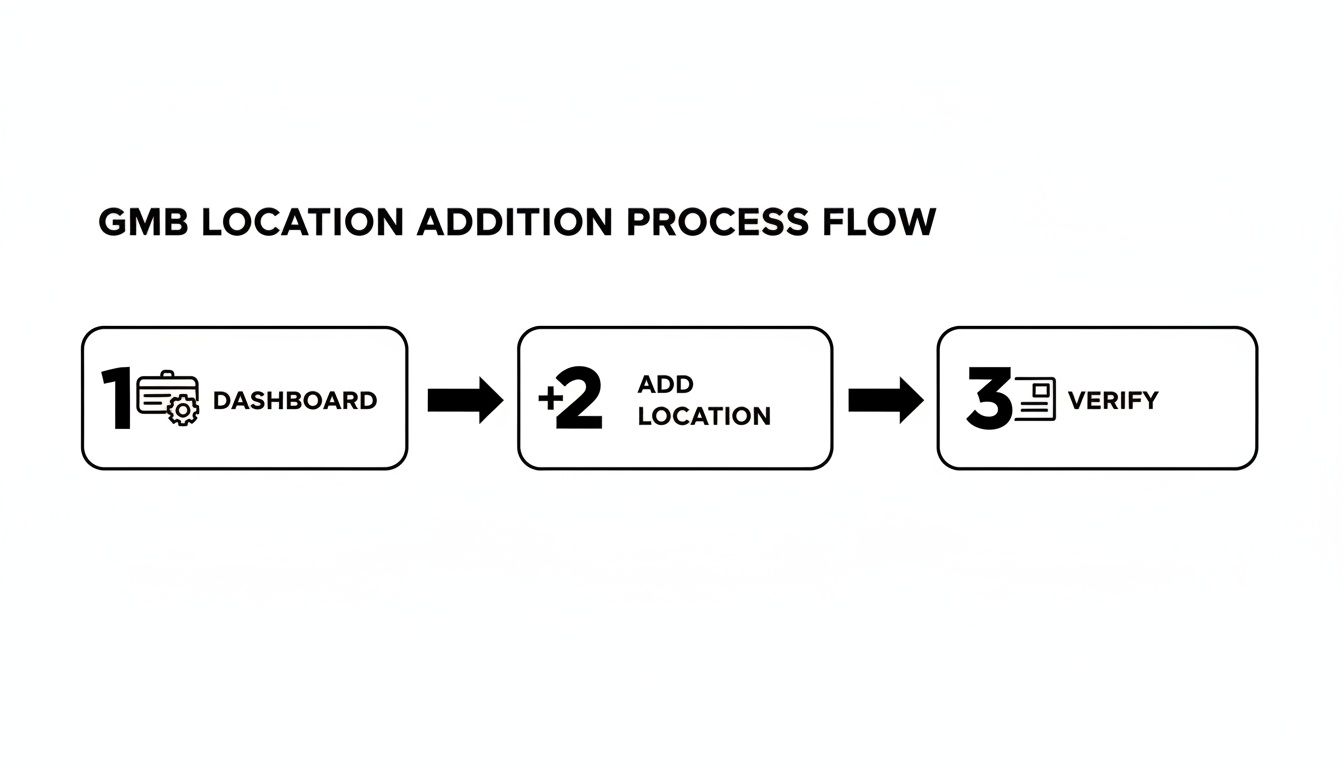
This graphic shows the simple process: start at your dashboard, add the location details, and then get it verified. The bulk upload just automates the "add location" part.
Key Spreadsheet Columns Explained
The template has many columns, but let's focus on the most important ones.
- Store Code: This is a unique ID you create for each location (e.g., 1001 or SF-UNION-SQ). It must be unique for every location and you can never change it.
- Business Name: Enter the name for each location here. Remember to keep it consistent but unique, like "Citywide Coffee – Main St."
- Address Lines: Be very detailed. A small mistake like typing "St" instead of "Street" can cause upload errors.
- Primary Phone: Each location needs its own unique, local phone number. Don't use a corporate 800-number for all of them.
- Website: Ideally, link to a specific landing page for each location (e.g.,
yourshop.com/main-st). If not, your homepage is fine.
🔑 Key Takeaway: The Store Code is your internal ID for each location. Google uses it to track edits. Once you assign a store code, never change it in future uploads.
Troubleshooting Common Upload Errors
Even with care, errors can happen. Most fixes are quick.
- Address is a duplicate: This means the address is too similar to another location. Check for typos or make sure you didn't list the same shop twice.
- Invalid format: This is usually a problem with a phone number or website. Phone numbers need a country code (like +1), and websites need
http://orhttps://. - Missing required field: You simply left a mandatory column like the address blank. Fill it in and re-upload.
Once your spreadsheet is uploaded and error-free, the final step is verification. If you have 10 or more locations, you can often get bulk verification, letting you verify all profiles at once and skipping the postcard process.
Optimizing Each Location for Maximum Local Impact
Getting your locations listed is just the start. Now, you need to optimize. Think of each Google Business Profile as its own mini-website for its neighborhood.
By treating each location as a unique entity, you send Google powerful local signals. This is critical for showing up in the "local pack" for "near me" searches.
Go Hyper-Local with Your Content
Don't copy and paste content across your profiles. Each location needs its own voice.
- Geo-Tagged Photos: Use high-quality pictures of each storefront, the team, and products. Smartphone photos usually embed location data (geotags), which is great for local SEO.
- Location-Specific Google Posts: Use the Posts feature for store-specific events. Is your downtown shop having a sale? Post about it there, not on your suburban location's profile.
- Unique Descriptions: Add a local touch to your business description. Mention a nearby landmark or what you love about that part of town.
Nail Down Categories and Attributes
Your primary business category is important, but secondary categories help you cast a wider net. A restaurant should also add "Italian Restaurant" or "Pizza Delivery."
Attributes are the details that help customers decide.
In Short: Attributes like "Outdoor seating" or "Free Wi-Fi" are search filters. People actively look for businesses with these features, and checking them off can bring you customers.
Optimizing your profile is a big step. For a full breakdown, read our guide on how to optimize your Google Business Profile. For multi-location businesses, it's also worth exploring effective local marketing strategies for franchises.
Fixing Common Problems When Adding Locations
Adding a new location should be simple, but roadblocks happen. Most issues are common and fixable.
What to Do When Your Postcard Never Arrives
This is one of the most common issues when people add locations to Google My Business.
First, wait a full 14 business days. If it's a no-show after two weeks:
- Request a new postcard from your GBP dashboard.
- Check for other verification options. Sometimes Google offers phone, text, or video verification after a postcard fails.
- Contact support directly. Be ready with photos of your storefront showing permanent signage and the address.
Dealing with Duplicate Location Flags
Google dislikes duplicate listings. If you try to add a profile that's too similar to an existing one, it may get flagged.
To fix this, search for your business on Google Maps at that address. If an unclaimed profile appears, click "Own this business?" to claim it. Then you can merge it with your new profile or delete it.
🔑 Key Takeaway: A good local SEO audit checklist can help find hidden duplicate listings before they become a problem.
Why Your Profile Is Stuck on "Pending Review"
After verification, your profile might get stuck on "pending review." This is normal. Google's quality control is doing a final check.
This can take a few minutes to a few days. The best thing to do is be patient. Don't make major edits to the name, address, or category, as this could reset the review process.
Frequently Asked Questions (People Also Ask)
Here are answers to some of the most common questions about managing multiple Google Business Profiles.
Can I use the same business name for multiple locations on Google?
Yes, but you should add a unique identifier for each one. Using the exact same name can confuse Google and your customers.
For example, instead of just "City Coffee" for all locations, use:
- City Coffee (Downtown)
- City Coffee (Southside)
- City Coffee on Main St
This helps each location rank independently in its local area.
How many locations can you add to Google My Business?
There is no official limit to the number of locations you can add to a Google Business Profile account. You can manage a handful or thousands.
However, once you have 10 or more locations, you become eligible for bulk management tools, including the spreadsheet upload and bulk verification, which saves a significant amount of time.
How do I manage multiple Google My Business locations?
The best way is by creating a location group within your Google Business Profile manager. This acts like a folder, allowing you to view and update all your business listings from a single dashboard.
For large numbers of locations, using the bulk upload spreadsheet is the most efficient method for making widespread changes to hours, phone numbers, or other attributes.
Can I use the same phone number for multiple locations?
No, you should not. Using a unique, local phone number for each location is a critical local SEO best practice.
When you reuse the same number, you send conflicting signals to Google. It can cause your profiles to be merged, flagged as duplicates, or fail to rank well in local search. Always get a distinct local number for every physical address. According to Google's guidelines, the phone number must connect to your individual business location as directly as possible.
At Clicks Geek, we live and breathe this stuff. We help local businesses untangle the knots of Google Business Profile and local SEO to get more customers through the door. See how we can help you get real results at https://clicksgeek.com.